Choosing a high-resolution display for your Mac doesn’t mean splashing out on an Apple Pro Display XDR, and the $2,500 Alogic Clarity 6K Touch monitor proves it.
At $4,999 before you add a stand, the Pro Display XDR is a beast of a display. Its 32-inch size makes it a great option for productivity and creativity alike, and the 6K resolution makes for Retina-like pinpoint sharpness.
Alogic’s alternative matches all of those specs. It also measures 32 inches from corner to corner, and its 6K resolution gives it a pixel density of 216 pixels per inch.
It’s also considerably cheaper, 50% the price of a Pro Display XDR. And again, Apple’s monitor needs another $999 spending to get it a stand, unless you go the $199 VESA mount route.
But while size, pixel density, and price are all good measurements for a display, they don’t tell the whole story. Connectivity, brightness, and underlying display technology are all vital.
Oh, and in case the name didn’t give it away, the Alogic Clarity 6K Touch is a touchscreen — complete with stylus support.
If you’re in the market for a 6K display, there’s a lot to think about. I’ve been using the Clarity 6K Touch for a couple of weeks, and to say my thoughts are complicated is an understatement.
But first, let’s start with the cold, hard specs.
Alogic Clarity 6K Touch monitor review: Specs
The Clarity 6K Touch is a big monitor, and it’ll dwarf a small desk. At 32 inches, it’s probably bigger than the monitor that you’re reading this review on.
Not too many years ago, 32 inches was a good size for a TV, never mind a monitor. If you’re someone who likes to multitask, 32 inches is a great size and should be enough to stop even the messiest of desktops from feeling cramped.
A display’s measurement from one corner to the other is only part of the equation, of course. We sit much closer to monitors than we do TVs, so they need to be a higher resolution to keep everything pin-sharp.
You can get away with 4K at 32 inches, but 5K is better. 6K is better still, and as the Clarity 6K Touch’s name already gave away, that’s the resolution of the panel Alogic used here.
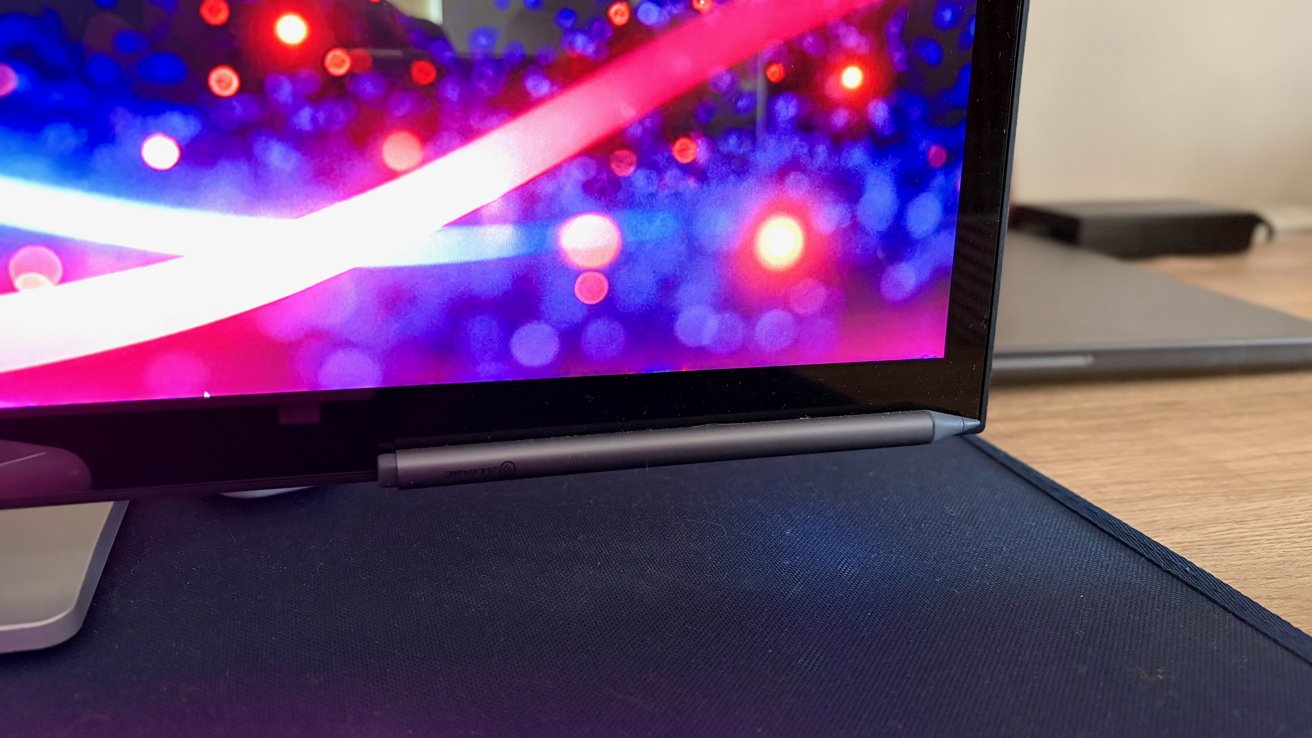
Alogic Clarity Touch 6K review: The Clarity Active Stylus Pen 2 attaches to the front of the monitor
To put that into perspective, 4K is shorthand for a resolution of 384 x 2160 pixels. That gives you a total of 8.3 million pixels.
Bump that to 5K, and you’ll get a resolution of 5120 x 2880 pixels for a total of 14.7 million pixels. That’s a huge increase in pixel density at the same screen size.
Move to 6K, and the figures get even crazier. The Clarity 6K Touch’s 6016 x 3384-pixel resolution provides a total of 20.4 million pixels across its 16:9 ratio.
Spread across this monitor’s full 32-inch canvas, those figures mean a pixel density of 216 pixels per inch, or PPI. That’s the exact figure that is generally accepted to be “Retina,” in Apple parlance.
All of that means I can’t see any of the Clarity 6K Touch’s pixels when sitting closer than I probably should be. Factor in macOS support for HiDPI scaling, and the result is a pin-sharp display across video, images, and, importantly, text.
That huge resolution means the Clarity 6K Touch is limited to a 60Hz refresh rate. That’s disappointing to people used to Apple’s 120Hz ProMotion laptop displays, but it can’t be avoided — even Apple’s Pro Display XDR tops out at 60Hz due to the bandwidth required to move those pixels, let alone refresh them more quickly.
Professional standards
Continuing the display specifications, the Clarity 6K Touch is rated for a 2000:1 contrast ratio. Alogic also ships the monitor with a color calibration report for 99% DCI-P3, 100% sRGB, and 99% Adobe RGB standards.
That’s all good news for creatives who need accurate colors when working with imagery and videos. The same goes for the monitor’s average Delta E of less than one.
In plain speak, Delta E is a measurement of how much a displayed color differs from the original input color. A Delta E of less than two is considered ideal for professional work. Less than one, and the human eye can’t tell the difference.
Beneath the surface, the Clarity 6K Touch uses an LED backlit IPS 8-bit + FRC panel. That means the monitor tries to fake 10-bit color via some display trickery, but it can cause flickering issues for some people — I saw no such issues here.
Finally, the display supports HDR400 and a 400-nit peak brightness. It isn’t the brightest, by any stretch, but it’s bright enough for most use cases.
Alogic Clarity 6K Touch monitor review: Design
When your monitor is as big as the Clarity 6K Touch, it needs to look good. Alogic has done a decent job in that regard.
From the front, the Clarity 6K Touch is all glass, with black bezels bordering the display. You can see the silver metal stand beneath the display, but it’s unobtrusive.
That stand is where some of the magic happens when called upon, though. Because the Clarity 6K Touch is designed to be drawn and written on, it can be maneuvered to lie almost flat on your desk. And that’s where the stand comes in.
When used as a normal monitor, that stand offers support for tilt and height adjustment. It doesn’t go particularly high, but a monitor this large shouldn’t be above your eye level anyway.
Around the back, the stand has a place for you to thread cables to keep your desk nice and tidy. But, again, the monitor is so big that you’re unlikely to see the cables behind it, regardless.
Alogic Clarity 6K Touch monitor review: Connectivity and features
Having a huge monitor is no good if you can’t connect it to anything, which brings us to the ports found on the back.
The Clarity 6K Touch has plenty of options for you to choose from. There are two HDMI 2.1 ports as well as a USB-C port and a DisplayPort 1.4 port, all ready to accept video feeds.
Most Mac users will likely connect to the Clarity 6K Touch via the USB-C port, which also offers 90 watts of power for laptop charging. That should be enough to keep all of Apple’s laptops charged, and I had no issues charging my 16-inch M4 Pro MacBook Pro.
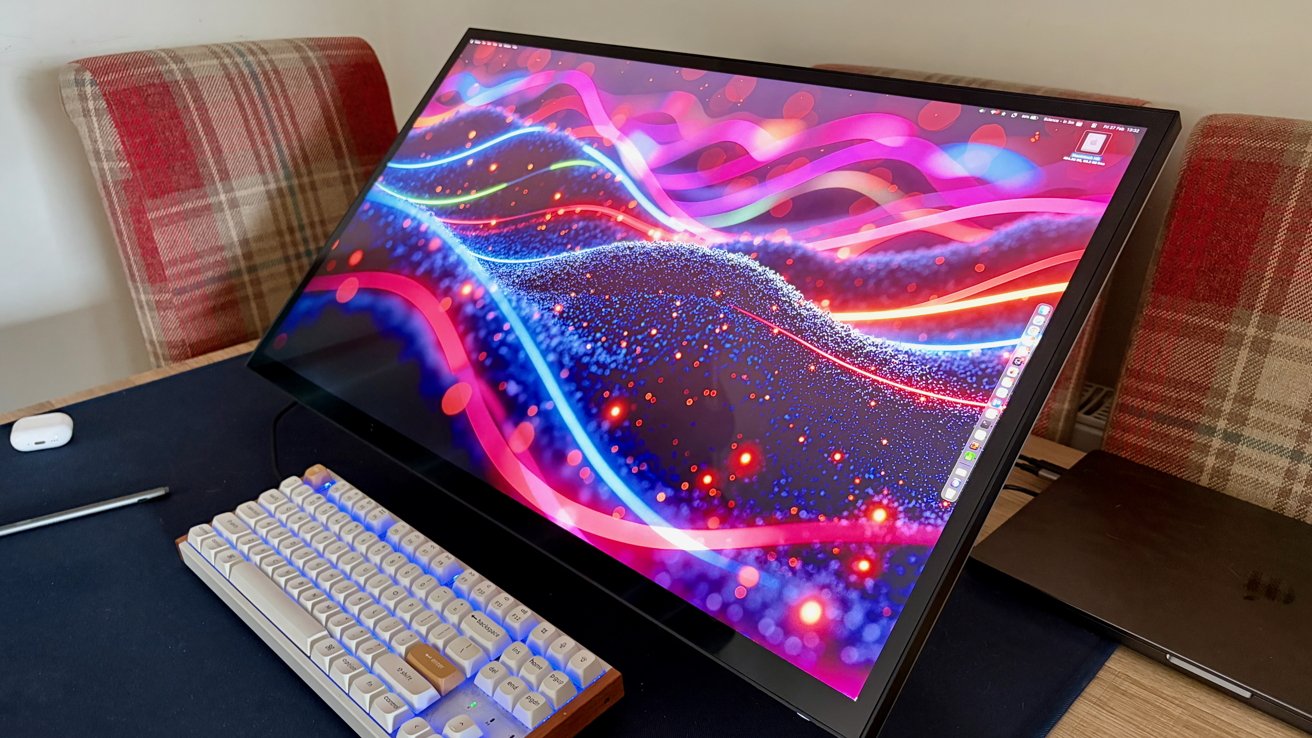
Alogic Clarity Touch 6K review: The monitor can lie down, making it easier to draw on
The monitor also has a built-in USB hub with two USB-A ports and a USB-B port. The latter is for connecting to your computer, while the former is rated for 5 Gbps data and 7.5 watts of power.
You’ll also find a 3.5mm audio out around the back of the monitor, suitable for both wired headphones and speakers. There are also two 5-watt speakers built into the monitor itself, but like all speaker monitors, they’re best ignored.
Finally, there is the touchscreen element, which adds something new for Mac users. The display itself supports 10-point multitouch, and you can use a stylus with it for art and writing.
Clarity Active Stylus Pen 2
While the display doesn’t support the Apple Pencil, Alogic sent me its $120 Clarity Active Stylus Pen 2 to test with it. The stylus magnetically attaches to the front of the monitor so it’s always there, ready to go.
The stylus charges via a USB-C port on the pen itself and can go from dead to 100% in less than an hour. It’ll also go to sleep and wake itself up automatically, giving it a 100-hour battery life. Add a standby time of up to three weeks, and it won’t need charging often.
The Clarity Active Stylus Pen 2 reminds me of the Apple Pencil in a few ways, not least its support for tilt and pressure sensitivity. It also supports a hover feature similar to Apple’s — hold the pen over the monitor and the cursor moves with it.
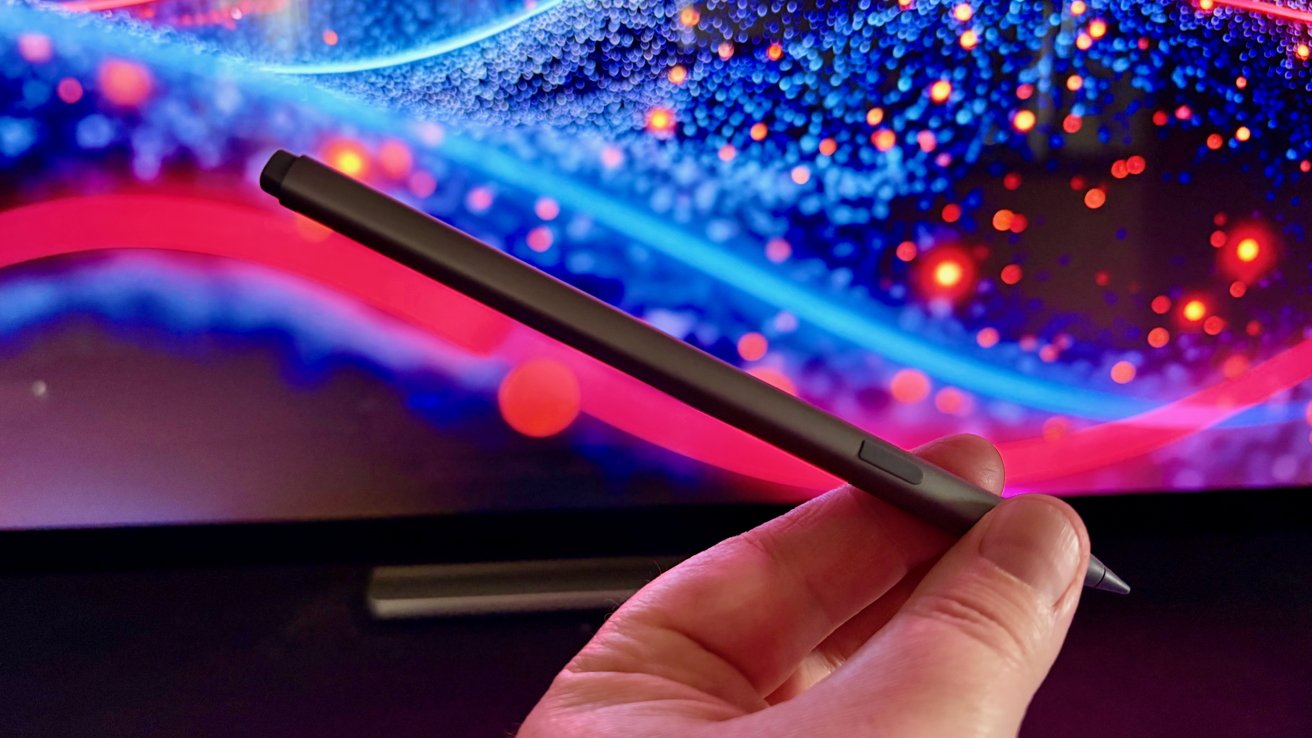
Alogic Clarity Touch 6K review: You’ll need a special stylus to write on this monitor
One end of the stylus sports a replaceable tip, while the other has an eraser. Flip the stylus over, and the eraser will be automatically enabled, which is handy.
There’s more, too, thanks to a quick action button on the side of the stylus. It acts as a right-click in macOS and can be used for actions within apps as well.
Alogic Clarity 6K Touch monitor review: Two weeks with a monster display
I’m writing this while staring at the Clarity 6K Touch, and I’ve been using it for the past two weeks. I had to turn our dining table into a makeshift desk because there wasn’t space for it on my real desk. It was never going to fit alongside the huge Innocn 49-inch ultrawide I reviewed previously.
I’ll admit that I’m no graphic artist. While I’ve tested the Clarity Active Stylus Pen 2 with the monitor lying down, it’s spent most of its time in the vertical position like a normal monitor.
While I often work from this table, that usually means peering at my MacBook Pro’s admittedly large 16-inch display. It works, sure, but it isn’t how anyone would choose to get their work done.
In that regard, the Clarity 6K Touch has been a revelation. Nothing quite boosts productivity like a big monitor.
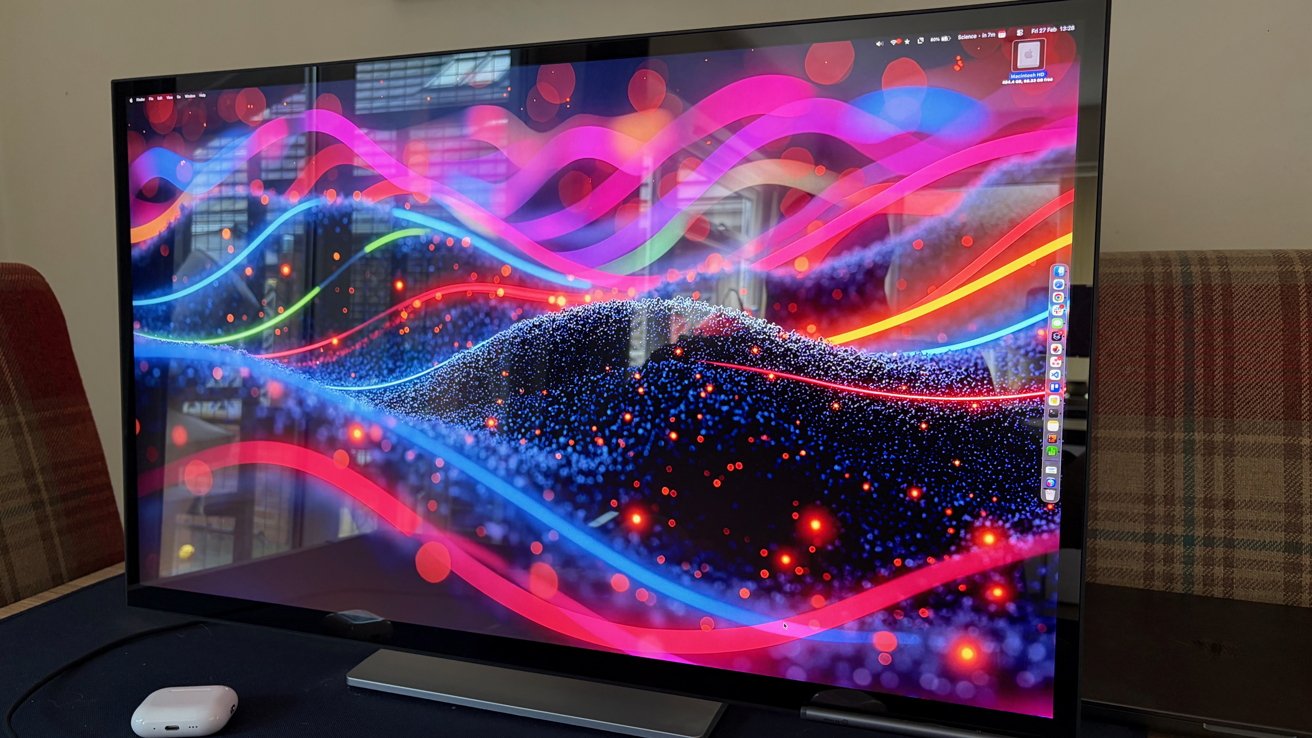
Alogic Clarity Touch 6K review: Glare could be a problem if your desk is near a window
To set the scene, I’m using the monitor connected to my MacBook Pro via the USB-C cable that came in the box. That’s given me a 6K image at 60Hz as I explained earlier. But there’s no HDR.
After spending longer than I probably should have reseating and restarting everything, I still couldn’t get the option to enable HDR. So I did what I should have done sooner — I reached out to Alogic.
It appears the Clarity 6K Touch only supports HDR on a Mac when using an HDMI connection, which is a shame. If you insist on using USB-C, you’ll be left with an SDR connection.
If you don’t work with HDR content, or you simply don’t want to use it, that isn’t an issue. If you do, you’d better hope your Mac has an HDMI port, or you’ll need a dock of some sort with HDMI 2.1 support.
Thankfully, even in SDR mode, the Clarity 6K Touch offers a colorful image. As the included calibration report suggests, the monitor does a good job of handling colors.
On a less positive note, the monitor could stand to be a little brighter. Its 400-nit peak brightness is fine most of the time, but on brighter days, it has a tendency to struggle.
The monitor’s case isn’t helped by Apple’s built-in laptop displays and their retina-searing brightness levels. I’m so used to having to set the brightness well below 100% that most monitors seem dim by comparison.
All the pixels
In its default configuration, macOS runs the monitor’s 6016 x 3384-pixel panel at a scaled 3008 x 1692 resolution. As you might expect, it’s a bit like looking at a magazine page — pixels disappear, and text is exceptionally smooth.
I’ve always preferred smaller on-screen elements over more breathing space, so I immediately headed into System Settings. The monitor has been running at 3360 x 1890 ever since.
I’ll admit that I briefly tried 6016 x 3384. But short of using a magnifying glass, even I’ll admit that everything was far too small — so back to 3360 x 1890 I went.
At that resolution, I’ve been able to use the monitor in my preferred two-app mode. Safari open to almost fill the left side of the screen, Chrome open to mirror it on the right.
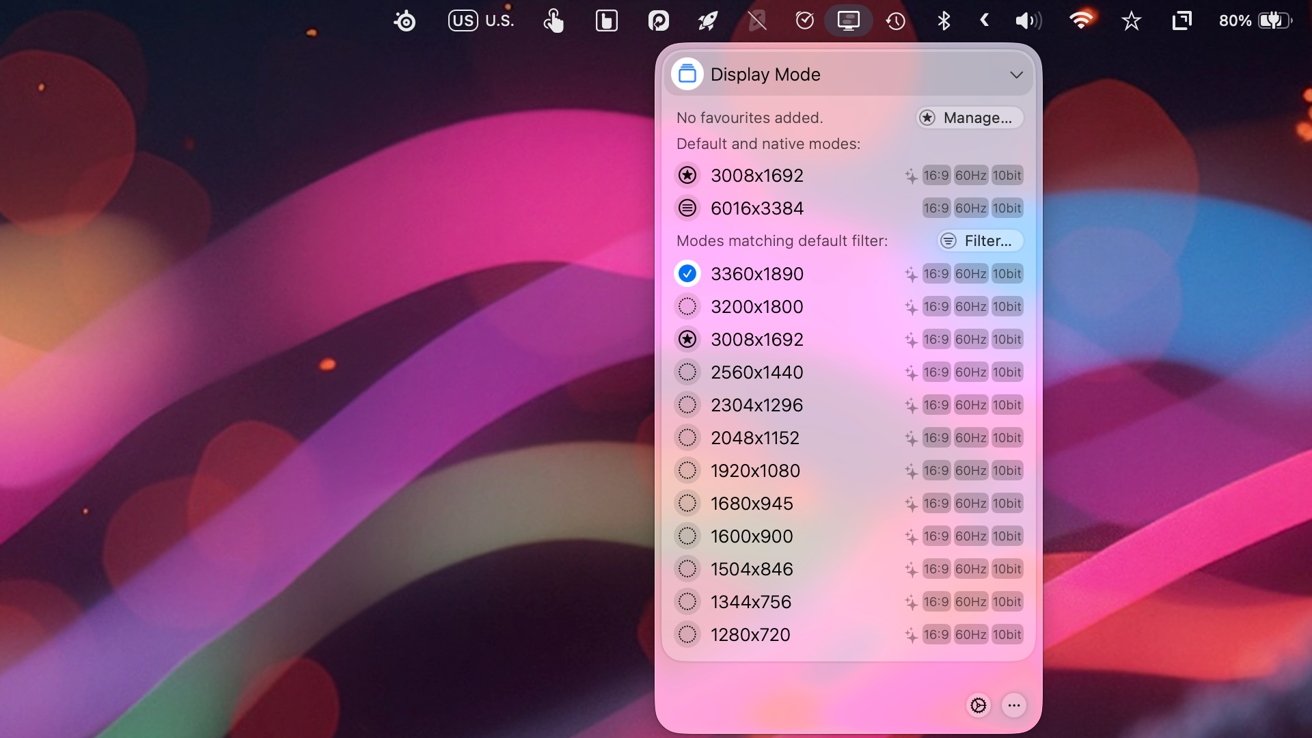
Alogic Clarity Touch 6K review: Just look at all those pixels
By tweaking the resolution scaling, I can also have a healthy amount of space around those apps. I find that’s vital, otherwise the Safari and Chrome windows are simply too big. Overpowering is a word that springs to mind.
I did experience a rather curious optical illusion for the first few days of my time with this monitor, though. It might be something unique to my experience, but I thought it was worth mentioning.
With the display directly in front of me and at as close to eye height as I could get it, the monitor looked curved. Not concave, like the aforementioned 49-inch ultrawide, but convex. It felt like the middle of the monitor was closer than the corners.
The effect went away the longer I used the display, but it was really weird.
While it’s likely the effect was the result of my going from a curved monitor to a flat one, I think the size played a part. At 32 inches, the monitor dominates a huge chunk of your field of view.
In reality, the corners are indeed further away from the middle. But not in such a pronounced way as it felt to me initially.
Too many pixels for some
There is one downside to having so many pixels, but it might not impact everyone. In fact, it’ll most likely only affect people who try to game on their Mac with this monitor.
Having a monitor with over 20 million pixels means those pixels need to be drawn. And that’s a lot of pixels to draw, especially when you’re doing something graphics-intensive.
The most obvious example here is gaming, something Macs aren’t always great at. And while gaming on the Clarity 6K Touch looks great, it’s more akin to a slideshow than a game.
I expected my M4 Pro MacBook Pro to struggle, and it did. But I also tested the monitor with a high-powered gaming laptop from Acer, complete with Nvidia GeForce RTX 5070 GPU. It, too, struggled.
Unsurprisingly, the Clarity 6K Touch isn’t a monitor to buy if you plan on gaming. But that 6K resolution makes it perfectly suited to getting work done.
The 6K resolution means videographers can open a full-size 4K video and still have room for all of their tools alongside it. Photo editors have a larger canvas on which to do their work.
Even writers like me benefit from the extra screen real estate, especially if they’re multitaskers. There’s just no substitute for a huge number of pixels when you need to have multiple apps open and visible at once.
Cutting corners
I mentioned Apple’s Pro Display XDR right at the top of this review. It’s a stunner of a monitor with a price that starts at $4,999 and goes north from there.
At $2,500, you don’t need a calculator to know the Alogic Clarity 6K Touch is considerably more affordable. You also don’t need to be a monitor engineer to know that something has to give to get the price that low.
There are a couple of aspects of the Clarity 6K Touch that I can point to as examples of that.
I already mentioned that I’d like to have seen a peak brightness of more than 400 nits. But the bigger drawback of the monitor’s LED-backlit IPS display technology is the lack of brightness uniformity.
The monitor has a couple of noticeable bright spots when displaying a solid black image. They’re at the edges of the screen, as you’d expect, and almost invisible most of the time.
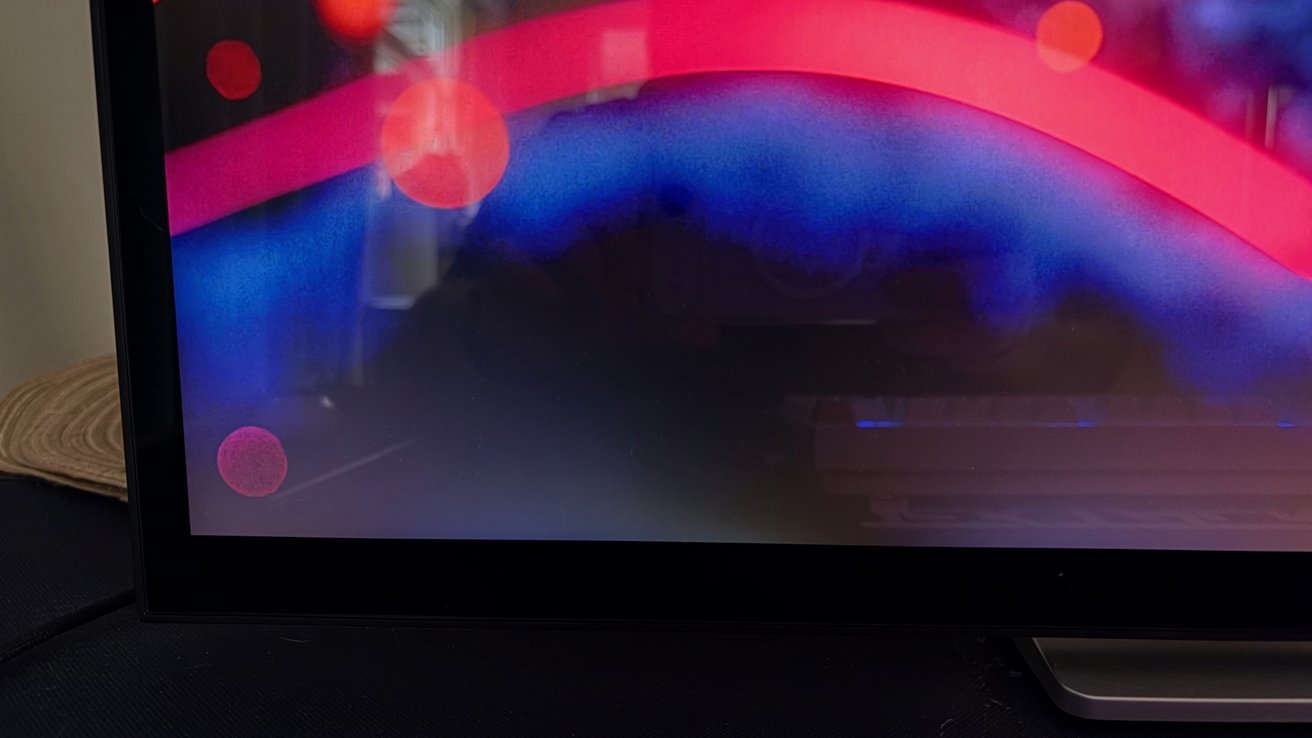
Alogic Clarity Touch 6K review: The uneven backlight is an issue some might notice more than others
But if I use darker wallpapers or even if I watch a movie on this thing, the lighter areas jump out. And they’re the kind of thing that, once seen, it’s impossible to ignore.
It’s important to note at this juncture that this isn’t an issue unique to this monitor or Alogic as a whole. It’s a drawback of the display technology being used. But it’s this display technology that brings the price down to $2,500, not $5,000.
Ultimately, the buyer will have to decide whether it’s a compromise worth making. If you want the size of the Pro Display XDR, and its 6K resolution, without the price, it may just be.
Buyers can’t expect Pro Display XDR levels of contrast, brightness, and uniformity from the Clarity 6K Touch. It would be unfair and unrealistic to do so, and you’ll just be left disappointed.
But if you can live with the compromises, this monitor is a great way to get stuff done. And you can draw on it — Apple can’t say that about the Pro Display XDR, can it?
Alogic Clarity 6K Touch Pros
- Considerably cheaper than a Pro Display XDR
- 216 ppi means pin-sharp text
- 32 inches is a great size
- Touchscreen and adjustable stand add new options for creatives
Alogic Clarity 6K Touch Cons
- Noticeable light bleed
- HDR400 won’t be bright enough for some
Rating: 4 out of 5
Where to buy the Alogic Clarity 6K Touch
The Alogic Clarity 6K Touch is available for order directly from the manufacturer with an RRP of $2,499.99. It can often be found cheaper elsewhere, such as at $1,999.99 at B&H Photo.